
How to Export You Instagram Data
last updated: feb 2026
How to Export Your Instagram Data
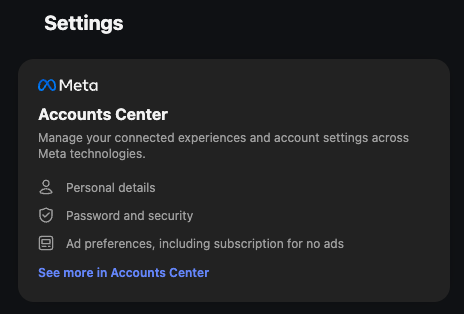
Step 1: Go to your Meta Accounts Center
Open Instagram Setting - as of Feb 2026, the Accounts Center is the first option you’ll see at the top.
Step 2: Go to Your information and permissions
Inside Accounts Center, go to Account settings → Your information and permissions.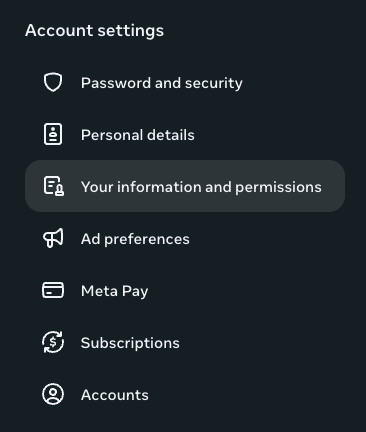
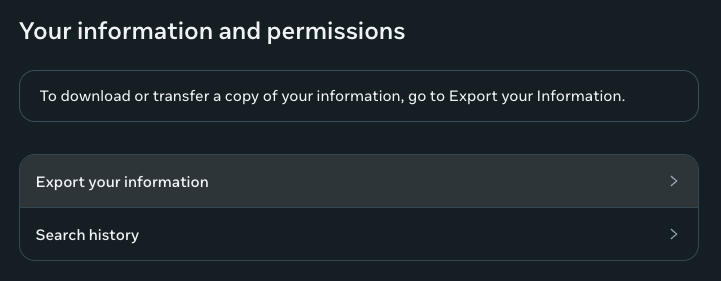
Step 3: Go to Export your information
Step 4: Choose where to export your data
You can export directly to your device or to a third-party service. I recommend always keeping a copy on your own device, regardless of what else you plan to do with it.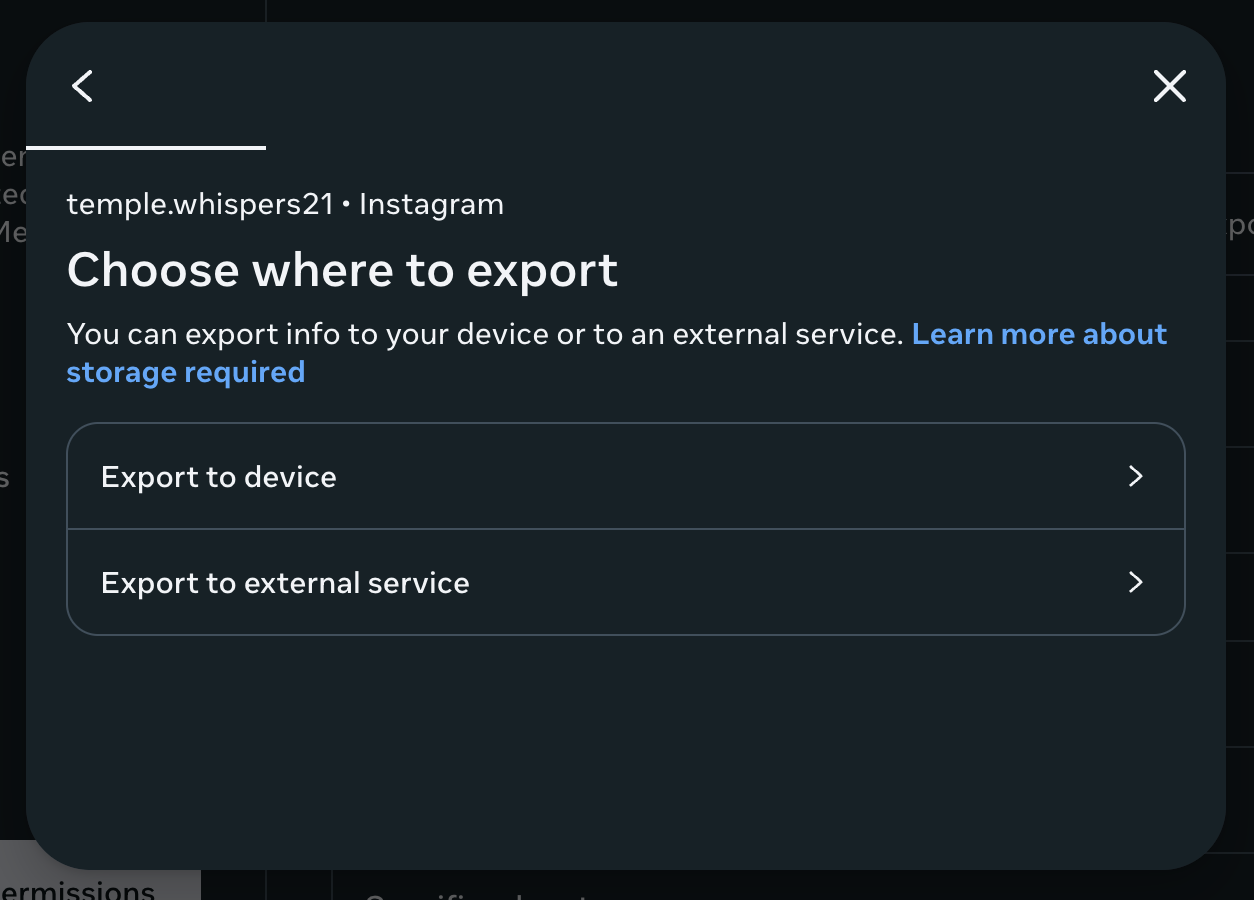
Step 5: Set your Export Preferences
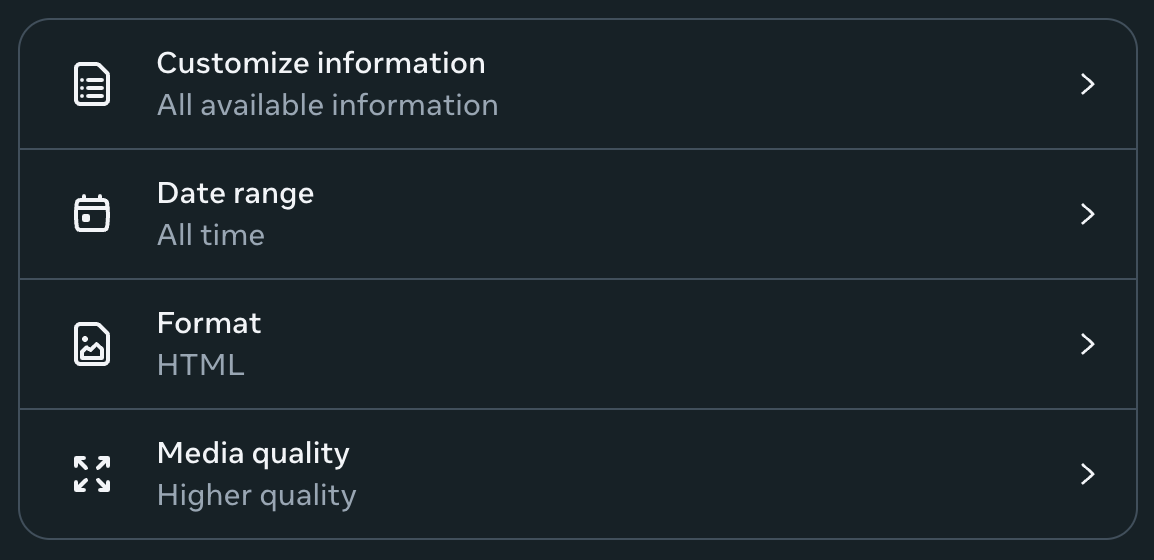
Once you choose to export to your device, you can set your preferences:Customize Information The most relevant information for most people is media and messages. You can leave the default ‘All information’ selected, but expect most categories to be irrelevant for your needs.
Date range Exporting all time can take anywhere from a few hours to several days on the first run. Future exports are significantly faster.
HTML or JSON? HTML renders your content in a browser-friendly format. I’d recommend download the JSON file, if you want to recreate your feed in the future or process the data yourself programmatically.
Media Quality I always select higher quality. In my experience, the size stayed around 1GB either way.
Once you confirm, confirm and come back in a few days to download your file.
If you have already exported before or selected a shorter date range, it’ll likely be ready sooner.
Note: As of February 2026, the export does not include post or reel metadata such as number of likes, comments or number of views. Which is a shame.